Ascender (AAP alternative)
Ascender is an alternative for the ansible automation platform from RedHat. It is developed as opensource and forked from the AWX v22 project.
For small and medium sized businesses a full implementation of the Redhat automation platform can become quite expensive, therefore it can be a good option to look for an alternative.
Ascender is such an alternative and is based on AWX.
Ascender can be used without a license, but this is only supported by the community. For a business
this can be a breaking point. The other option is to get a license for Ascender pro from cicq
to get support ( I do not have any connection to any of the products mentioned ).
In this document we will install and test this platform, just as we did with the ansible automation platform.
Requirements
For the controller:
System: Rocky Linux 9
memory: 8 GB (4GB minimal)
CPU: 2 cores
disk: 20GB free (24GB)
We installed a base system with Rocky linux as defined in our AAP inventory.
For the execution nodes:
System: Rocky Linux 9
memory: 4 GB
CPU: 2 cores
disk: 20GB free (24GB)
This will also be a standard system with Rocky Linux 9 as defined in my infrastructure as code.
Expectations
As we are used to the automation platform, we have a number of expectations:
- UI should be intuitive
- configuration as code should work
- minimal changes to the ansible code
- connection to LDAP should work
- playbooks and schedules should work
Installation for controller
Documentation can be found here:
Ascender documentation
Installing ascender is not that hard, just create a vm with the correct specs and run the following commands:
sudo dnf install git -y

git clone https://github.com/ctrliq/ascender-install.git
cd ascender-install

./config_vars.sh
This wil install the product and starts the script for the basic configuration, if your want to configure ascender by modifying the configuration vars yourself, be my guest, I didn't.
Ascender runs on kubernetes and the installer will install and configure this for you if needed, great job by the
guys who created the installer.
The configuration script will ask a number of questions, see below.
Configure the following values:
Select the number of the Kubernetes platform you are using to install Ascender:
1 - k3s
2 - eks
3 - aks
4 - gke
5 - rke2
6 - dkp
7 - ocp
8 - tkgi
Enter your selection [eks]: 1

Boolean indicating whether to set up a new k3s/k8s on premise cluster (true) or use an existing k3s/k8s on premise cluster (false):
1 - true
2 - false
Enter your selection [false]: 1

Boolean indicating whether to use local assets to complete an OFFLINE install (true) or perform a traditional install using internet resources (false):
1 - true
2 - false
Enter your selection [false]: 2

Do you wish to pull container images to serve as additional Execution Environments? If unsure, choose false:
1 - true
2 - false
Enter your selection [false]: 2

Boolean indicating whether or not the kubeconfig file needs to be downloaded to the Ansible controller:
1 - true
2 - false
Enter your selection [false]: 1

Select the number of the protocol you want to support. Selecting 'https' requires the SSL certificate being present:
1 - http
2 - https
Enter your selection [http]: 1

Routable IP address for the K3s Master/Worker node
Enter your selection [127.0.0.1]: 10.1.1.202

Boolean indicating whether to use the local /etc/hosts file for DNS resolution to access Ascender:
1 - true
2 - false
Enter your selection [true]: 2

Where will install artifacts be stored
Enter your selection [{{ playbook_dir }}/../ascender_install_artifacts]:

DNS resolvable hostname for Ascender service
Enter your selection [ascender.example.com]: ascender.dev.lab

Namespace for Ascender Kubernetes objects
Enter your selection [ascender]:

Administrator username for Ascender
Enter your selection [admin]:

Administrator password for Ascender
Enter your selection [hidden]:

The image tag indicating the version of Ascender you wish to install
Enter your selection [25.6.2]:

The version of the Ascender Operator used to install Ascender
Enter your selection [25.6.2]:

Boolean indicating whether to keep the secrets required to encrypt within Ascender (important when backing up):
1 - true
2 - false
Enter your selection [true]: 1

Boolean indicating whether to use an external PostgreSQL database for Ascender:
1 - true
2 - false
Enter your selection [false]:
2

Number of replicas for the Ascender web container
Enter your selection [1]:

Select the Ascender web container image pull policy:
1 - IfNotPresent
2 - Always
3 - Never
Enter your selection [Always]: 1

Boolean indicating whether to add standard playbooks into Ascender after installation:
1 - true
2 - false
Enter your selection [true]: 1

Boolean indicating whether to install Ledger:
1 - true
2 - false
Enter your selection [false]: 2

Boolean indicating whether to install the Ascender Galaxy Proxy:
1 - true
2 - false
Enter your selection [false]: 2
Edit the resultiong file custom_vars.sh
Ensure the value ASCENDER_MESH_HOSTNAME variable is present in the custom_vars.yml, so the automation mesh is present after installation.
I stopped the firewall because the script failed when the firewall was running (in my test setup):
sudo systemctl stop firewalld
sudo systemctl disable firewalld
This is probably a bug.
run ./setup.sh to install ascender.
After installation completes, go to: https://your-ascender-host-fqdn
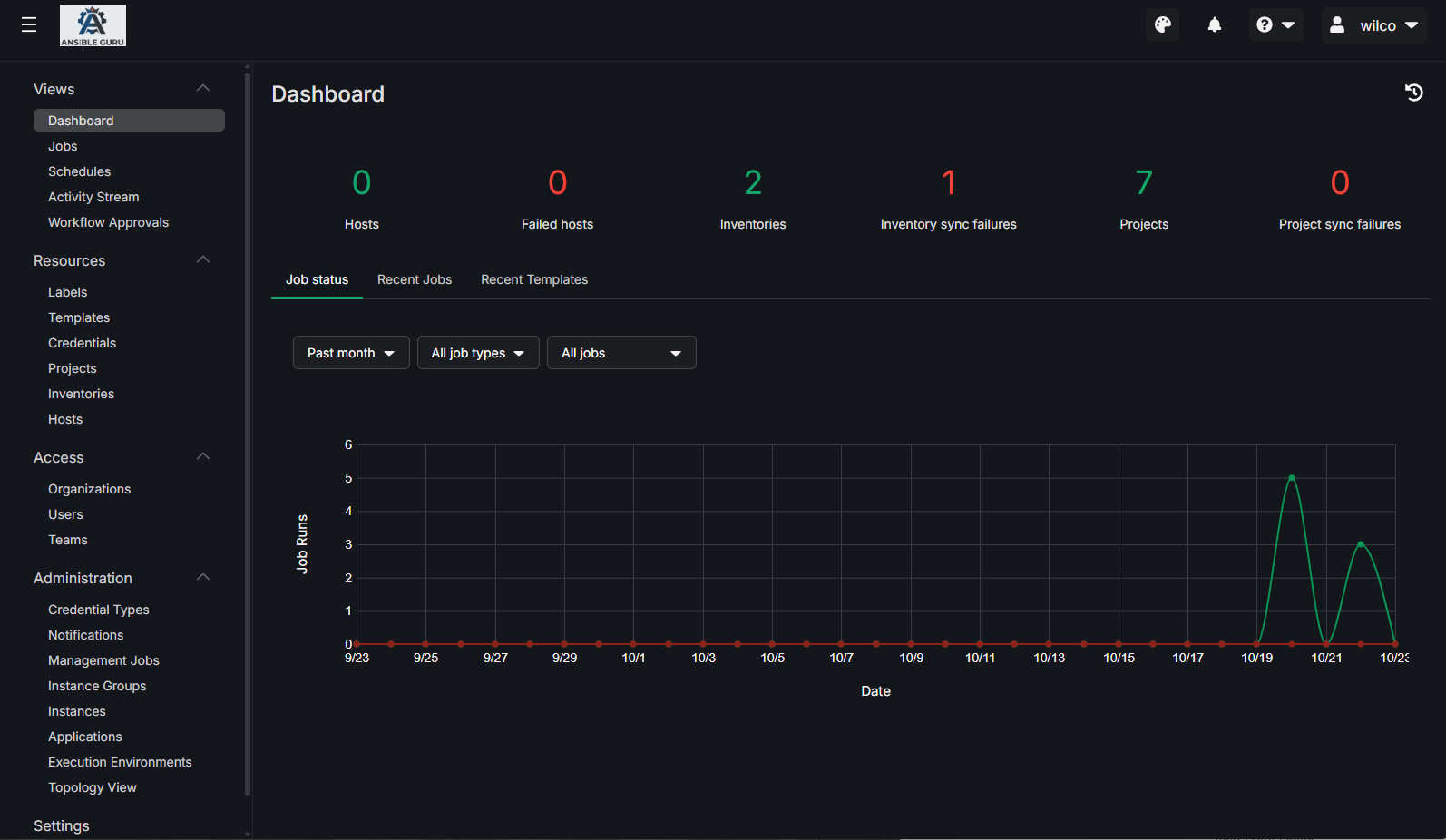
After login, you will be directed to the dashboard:
Installation for execution nodes
the first step in adding an execution node to the ascender installation is the deployment of the virtual machine.
When the machine is deployed we can login onto the machine using the ansible account.
Now we login to the UI of ascender and start creating a new instance:
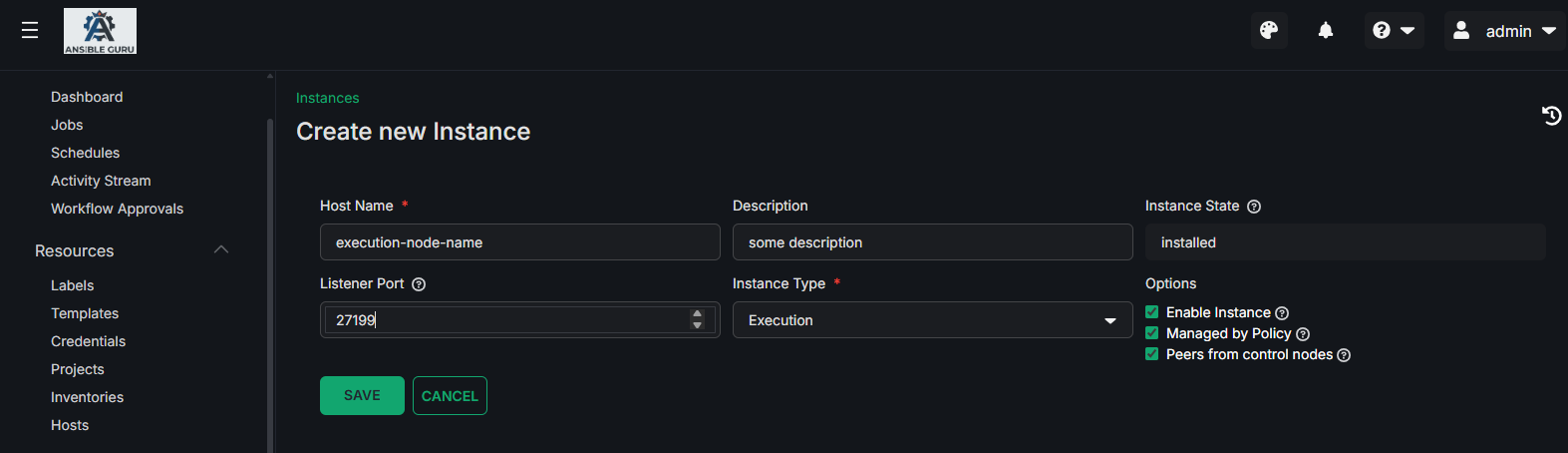
We need to provide the following details:
hostname:      executor01.dev.lab
description:   some description of this host
listener port: leave blank or 27199
instance_type: executor
Click 'SAVE' to save the instance information, the installation bundle will be generated anmd ready for download.
Login on the executor node using a normal user with sudo rights (like ansible):
Run the following command to download and untar the package:
curl -k -o node_install_bundle.tar.gz -u "admin:password" http://<your-ascender-fqdn>/api/v2/instances/3/install_bundle/
tar xvzf node_install_bundle.tar.gz
Create a ssh key for the ansible user and install ansible-core additionally open the firewall for 72199/tcp:
ssh-keygen -t rsa -b 4096
cat ~/.ssh/id_rsa.pub >> ~/.ssh/authorized_keys

sudo dnf install ansible-core bind-utils

sudo firewall-cmd --zone=public --add-port=27199/tcp --permanent
sudo firewall-cmd --reload
Change the working directory to the extracted package.
Edit and update the inventory.yml file.
---
all:
  hosts:
    remote-execution:
      ansible_host: excution-node-hostname
      ansible_user: ansible # user provided
      ansible_ssh_private_key_file: ~/.ssh/id_rsa
Now run the playbook to install the receptor service:
ansible-playbook -i inventory.yml install_receptor.yml
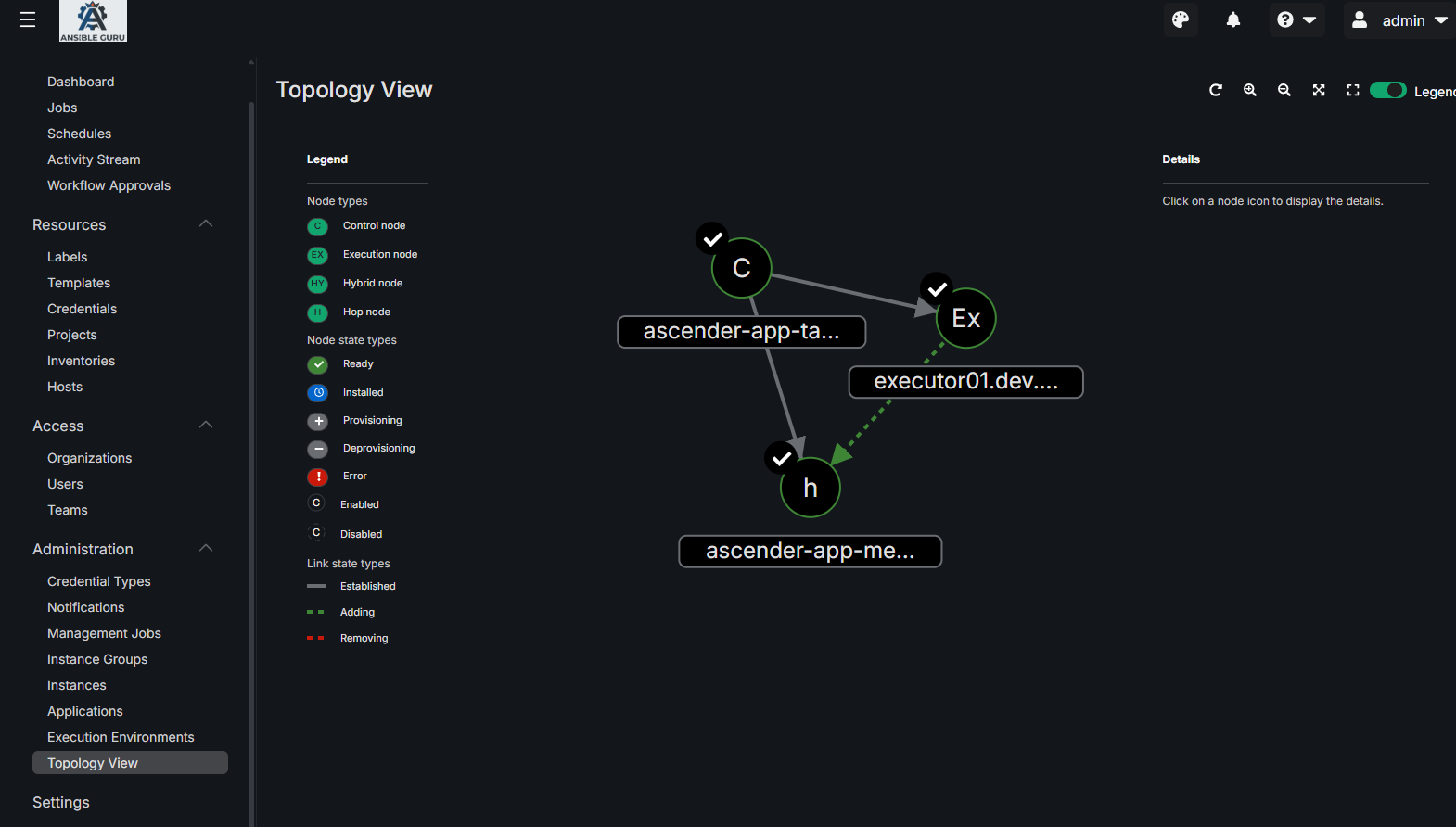
When all is working as it should, the executor node should become 'ready' in the ascender UI.
Configuration as code
Working on this..