Lab on proxmox
updated: 26-06-2026

Started adding a private image registry for docker images and execution environments used in AAP.
The docker images used locally is a no-brainer, it removes a dependency with the internet.
The EE environments for AAP can be hosted in AAP... Yes, but when you reinstall and recover AAP
as much as I do, recreating the images takes a lot of time. This is an easy backup and restore option
and saves a lot of time during recovery. It also ensures the images stay identical in AAP versions.
Proxmox is an OpenSource virtualization platform that is very well suited for a homelab.
It can be downloaded from proxmox.com.
I will take you on this yourney, updating this as I progress, making mistakes, correcting them...
And I will write it all down here..
When the lab works, this document will be revised... hiding my errors and F-ups..
In these pages I am building my homelab step-by-step, using containers and VM's for various appliances.
To name a few things we are going to make:
- 2 networks (dev and prod)
- A nameserver
- A reverse proxy server (used for this site)
- A nginx server in dev
- A nginx server in prod
- A gitlab server
- A gitlab runner
- A wireguard vpn server
- and many more ....
What I set out to do with my homelab, is testing ansible playbooks and creating Configuration as Code for ansible automation platform. So when all the basic services are in place I will be installing the contianerized version of the ansible automation platform.
In my "lab in a box" installation I had a version(2.4) of automation platform already running, including configuration as code. My goal was to do the same in this proxmox installation with automation platform 2.5 or higher and it has exceeded my expectations.
As I got further with the functionality, I realized that having 2 extra NAT networks was not as convinient as I thought it would be.
I changed these into (SDN) lan segments with a seperate network address range, with a linux router running in a lxc container.
This network setup is a much more versatile configuration for me.
After running the software defined network for a while, I found that performance was becoming an issue (using a single 1Gb LAN adapter
per host). This called for a different solution
being hardware, so I added a USB networkadapter (1Gb) to each host and a managed switch to connect them all.
Now I was able to setup separate networks, using VLAN id's over the usb network and keep the primary network free from other traffic.
This solved my network performance for now.
selecting hardware
First we need to select the hardware for proxmox, we want good performance and lots of memory.
The first tests I did with a refurbished HP EliteDesk mini PC with an i5 4 core cpu and 32GB memory. Having some experience with virtualization,
more memory is always better.
For the next exercise, I chose for a mini PC system with 64GB memory and a i9 laptop cpu with 14 cores, that should be enough for now.
The storage is this mini PC is NVME2 1TB and a 2.5Gb network adapter make this system complete.
Possibly a bit too much, but when we want to use RedHat ansible automation platform on this, we need some resources.
Keeping the first mini PC as services machine, the core services for the "Enterprise" will land on the "old" proxmox box. We will
migrate these to the big machine in time.
Having a NAS is a great addition to the configuration, this way you can offload backups to an external system.
So when one of the machines in your cluster fails, you have backups of your containers and VM's.
Installing proxmox
The installation of the proxmox software is super simple, just follow the instructions on the proxmox site. The configuration after installation
was the tricky bit for me, because I wanted the network to have a particular layout.
The base install is very well described on the proxmox site, we are not going to copy that here. After the base install we have a proxmox
server with a local network connection.
Ensure you install the latest microcode for your cpu, it will save a lot of time when using something like cifs.
Creating nat networks
In my lab, I created 2 extra nat networks, to place my containers and VM's in, instead of filling my entire network with IP's of my test VM's. Choose your ip ranges to create networks for ( I chose 10.1.1.0/24 and 10.10.10.0/24 ).
Open a ssh connection to your proxmox box and login as the root user (or just use the console).
Edit the network configuration file:
nano /etc/network/interfaces
and paste the following config (to copy mine)
# network interface settings; autogenerated
# Please do NOT modify this file directly, unless you know what
# you're doing.
#
# If you want to manage parts of the network configuration manually,
# please utilize the 'source' or 'source-directory' directives to do
# so.
# PVE will preserve these directives, but will NOT read its network
# configuration from sourced files, so do not attempt to move any of
# the PVE managed interfaces into external files!

auto lo
iface lo inet loopback

auto eno1
iface eno1 inet manual

auto vmbr0
iface vmbr0 inet static
        address 192.168.2.209/24
        gateway 192.168.2.254
        bridge-ports eno1
        bridge-stp off
        bridge-fd 0
#Wan network

auto vmbr1
iface vmbr1 inet static
        address 10.1.1.1/24
        bridge-ports none
        bridge-stp off
        bridge-fd 0
#10.1.1.0 network

auto vmbr1
iface vmbr1 inet static
        address 10.10.10.1/24
        bridge-ports none
        bridge-stp off
        bridge-fd 0
#10.10.10.0 network


post-up echo 1 > /proc/sys/net/ipv4/ip_forward
post-up iptables -t nat -A POSTROUTING -s '10.1.1.0/24' -o vmbr1 -j MASQUERADE
post-up iptables -t nat -A POSTROUTING -s '10.10.10.0/24' -o vmbr2 -j MASQUERADE
post-up iptables -t raw -I PREROUTING -i fwbr+ -j CT --zone 1
post-down iptables -t nat -D POSTROUTING -s '10.1.1.0/24' -o vmbr1 -j MASQUERADE
post-down iptables -t nat -D POSTROUTING -s '10.10.10.0/24' -o vmbr2 -j MASQUERADE
post-down iptables -t raw -D PREROUTING -i fwbr+ -j CT --zone 1
This will create the networks your need and ensures the forwarding of traffic from the VM/containers to the internet.
If your ISP or Modem creates a private IP range for you, you can leave vmbr1 and 2 out.
You will have plenty of addresses for a homelab.
Make VM's reachable from the local network
When you create containers and/or VM's on these nat networks, these machines can reach the internet, but they are not accessible
from the the outside.
To make the machine/port accessible, you must route traffic to this machine through iptables.
I created a script for this purpose:
routing_rules.sh
# Delete all old rules to prevent them from providing access
iptables -t nat -F PREROUTING

# SSH rules
# We forward SSH ports to the VM's and containers
# The port number is 10000 plus the VM-id
iptables -t nat -A PREROUTING -d <wan_ip>/32 -p tcp -m tcp --dport 10100 -j DNAT --to-destination 10.1.1.5:22
iptables -t nat -A PREROUTING -d <wan_ip>/32 -p tcp -m tcp --dport 10101 -j DNAT --to-destination 10.10.10.10:22


# proxy rules for http and dns
iptables -t nat -A PREROUTING -d <wan_ip>/32 -p tcp -m tcp --dport 80 -j DNAT --to-destination 10.10.10.2:80
iptables -t nat -A PREROUTING -d <wan_ip>/32 -p udp -m udp --dport 53 -j DNAT --to-destination 10.10.10.2:53

# Grafana
iptables -t nat -A PREROUTING -d <wan_ip>/32 -p tcp -m tcp --dport 3000 -j DNAT --to-destination 10.1.1.11:3000
This script is made executable with chmod +x routing_rules.sh
I added the script to the crontab with the @reboot tag, so it is executed on every reboot.
Selecting OS for VM's ans containers
As I want to automate almost everything that runs on my proxmox cluster, I need to minimize the number of OS'es I will be running.
As every OS needs different ansible code (or at least testing), I want to minimize this to maybe 2.
I chose:
- Alpine
- Rocky linux
Alpine is a linux with a very small footprint in lxc containers for some services.
Rocky linux is the closest to what I am working with on a daily basis (rhel).
There is one exception to this rule, that is automation platform, it needs rhel.
Ensure remote access
A homelab is usefull, but we are never always at home, so we need access from another location. The safest way to ensure network access
is setting up a VPN tunnel over the internet.
We used wireguard for that and our proxmox server to host this in an efficient way. Note that this tunnel can also help secure connections
over unsafe wifi networks.
Create a lxc_instance for the VPN
So logged in as a priviledged user on the proxmox GUI, we click on "Create CT" to create a new container. Choose a container name (mine was creatively called vpnserver) and be sure to connect the container to the LAN network bridge(vmbr0). The container needs a fixed IP, so either reserve an IP address in your router, or assign a fixed ip yourself.
I used a bare alpine (no turnkey) lxc template for this container and assign the following resources:
- 32 MB memory
- 0 MB swap
- 1 core CPU (limit to 0.25)
- 2 GB diskspace
The memory seems to be overkill for a wireguard container (it uses about 4MB idle), but a continuous swapping server is not what you want. As memory is important for a stable connection, this is a no-brainer. Since this server will hardly ever store data, this 2GB of storage more than enough for the OS and its updates. Set the root password to your standards, keep in mind that this system is open to the internet, so a strong password is advised.
Install pivpn
You could try to configure wireguard by hand, but if you want to go the easy route, just install pivpn. Even I thought that pivpn is for the
RaspberryPi, nope, it works like a charm, just install and enjoy.
It will handle it all for you...
Before installing pivpn, we need to fullfill some prerequisites:
apk add curl
apk add bash
Installation instructions can be found at:
After the installation is finished, the wizzard will take you through the steps of your system configuration.
Configure clients
Adding clients is very easy, just run "pivpn add" and follow the steps.
Configure portforwarding of the chosen port on your modem or router to the ip address of your vpnserver.
Load the client profile on your client device (like your phone) and enjoy.
You can create the container in the nat network of the proxmox server, but you will not be able to access this directly from the outside.
You will need to add a firewall rule to the proxmox server to forward traffic to the container.
iptables -t nat -A PREROUTING -d <ip-of-proxmox>/32 -p udp -m udp -DPORT 51820 -j FORWARD --to-destination <ip-of-vpncontainer>:51820
Forward the port on your internet router to the same port on the proxmox server.
A configuration on the vmbr0(LAN) is the easiest to troubleshoot if anything goes wrong.
Add nameserver to your network
A DNS service is essential in an Enterprise like setup. Your hosts must be reachable by name and not by ip addess. Install and configure a
caching nameserver..
To add a caching DNS nameserver to your lab environment, you can follow the following procedure.
This will create:
- A nameserver lxc container
- A forwarding rule on the proxmox server to the nameserver
- 3 dns zones
- all zone files (forward and reverse)
Create the container
To host the nameserver we will need a lxc container with the following specs:
- a container based on the CentOs stream lxc template
- 128 MB memory
- 128 MB swap
- 4 GB disk space
- 1 CPU core
Once the container is created, log in with the root account.
Install bind
dnf install -y bind
systemctl enable named
edit the file named.conf
Adjust the top section according to the following:
Only the changes are listed below, lines that aren't changed are left out.
The forwarders and cache control lines are added.
This keeps named from eating all memory and getting killed by the oom-killer..
options {
        listen-on port 53 { any; };
        forwarders      { 192.168.2.254; };
        max-cache-size  50m;
        cleaning-interval 2;
        max-cache-ttl 120;
        max-ncache-ttl 120;
        allow-query     { any; };

        dnssec-validation no;
At the bottom of the file, add the zones:
In the default file, you wil see a "hint" zone, replace that zone with the lines below, changing the domain names to your names.
zone "local" IN {
        type master;
        file "local.forward";
};

zone "10.1.1.in-addre.arpa" IN {
        type master;
        file "local.rev";
};

zone "localdomain" IN {
        type master;
        file "localdomain.forward";
};

zone "10.10.10.in-addre.arpa" IN {
        type master;
        file "localdomain.rev";
};


zone "homelab" IN {
        type master;
        file "homelab.forward";
};


zone "2.168.192.in-addr.arpa" IN {
        type master;
        file "homelab.rev";
};
Save the file..
Preparing the zone files
Change to the /var/named directory:
Touch the following files: - local.forward - local.rev
Add the following lines to the local.forward file:
$TTL 3600
@ SOA nameserver.local. root.local. (2025032402 15m 5m 30d 1h)
    NS nameserver.local.
    A 10.1.1.222

nameserver              IN      A       10.1.1.222
Add the following lines to the local.rev file
$TTL 86400
@ IN SOA nameserver.local. root.local. (
                                                2025032402 ;Serial
                                                3600 ;Refresh
                                                1800 ;Retry
                                                604800 ;Expire
                                                86400 ;Minimum TTL
)
; Nameserver information
@ IN NS nameserver.local.
nameserver      IN      A       10.1.1.222
;Reverse lookup for this nameserver
222     IN      PTR     nameserver.local.
Now initialize the other zone files, by copying the forward file to the new names.
cp local.forward localdomain.forward
cp local.forward homelab.forward
cp local.rev localdomain.rev
cp local.rev homelab.rev
Start your engines..
Mow start the nameserver
systemctl start named
It should start without any errors.
Add machines to the dns
By adding records to the zone files, you can add machine names that can be resolved by this nameserver. This nameserver will only work on the inside of your proxmox networks.
How to use the nameserver from the outside will be explained later.
Add docker host
To be able to use recent developments in containers like microservices, we could convert all images to lxc images. This could be an enormous task. So to use these images as they are delivered, we will add a docker host to our homelab. To run docker on proxmox we will create a new container based on the rocky linux 9.x lxc template.
Resources:
- 2 GB memory(minimum)
- 512 MB swap
- 2 cores
- 20 GB diskspace.
Ensure the lxc container is connected to a physical network (one that is connected to a vmbr[x] network), there can be issues with docker lxc contianers, connected to software defined networks. These issues can be very subtle, so test everything before you install lxc on SDN in production.
It looks like overkill, but we will add multiple services to this docker instance. Docker needs a special configuration parameter to run
nested in a lxc container.
After creation, do not start the container yet, adapt the settings under "Options":
- Unprivilleged container = no
- Features = nesting=1, FUSE=1
After changing these options, start the container. The option FUSE=1 is very important, if you want to run podman builds in a container (pipeline), this will only work if this option is set. Once the container has been started, log in on the console.
On the proxmox host where the lxc lives, edit the configuration file for the lxc:
nano /etc/pve/lxc/<cont_id>.conf
Add the following lines:
lxc.cgroup.devices.allow: a
lxc.cap.drop:
lxc.apparmor.profile: unconfined
this will reduce security, but when running a gitlab runner in docker, this will ensure an errorfree environment.
Installing docker
To install docker on this rocky linux container, we run the following ansible playbook:
---

- name: Install docker
  hosts: "{{ instances | default('dummy') }}"

  tasks:

    - name: Write some extra options into the configuration of the LXC host
      ansible.builtin.blockinfile:
        path: "/etc/pve/lxc/{{ hostvars[inventory_hostname]['id'] }}.conf"
        insertafter: EOF
        mode: '0650'
        owner: root
        group: www-data
        block: |
          lxc.apparmor.profile: unconfined
          lxc.cgroup.devices.allow: a
          lxc.cap.drop:
      become: true
      delegate_to: "{{ hostvars[inventory_hostname]['proxmox_node'] }}.homelab"
      failed_when: false

    - name: Part 1 install docker
      become: true
      block:
        - name: Add docker repos to hosts
          ansible.builtin.yum_repository:
            file: docker-ce
            name: docker-ce-stable
            baseurl: https://download.docker.com/linux/rhel/9/x86_64/stable
            gpgcheck: false
            enabled: true
            description: docker-ce

        - name: Install packages
          ansible.builtin.package:
            name:
              - docker-ce
              - docker-ce-cli
              - containerd.io
              - docker-buildx-plugin
              - docker-compose-plugin
              - nfs-utils
              - python3.11
              - python3.11-requests

        - name: Enable the docker service
          ansible.builtin.service:
            name: docker
            enabled: true
            state: started

        - name: Load modules by default
          ansible.builtin.copy:
            dest: /etc/modules-load.d/docker.conf
            content: |
              ip_tables
              ip_conntrack
              iptable_filter
              ipt_state
            mode: '0655'
            owner: root
            group: root

        - name: Write docker daemon.json
          ansible.builtin.template:
            src: daemon.json.j2
            dest: /etc/docker/daemon.json
            owner: root
            group: root
            mode: '0644'

        - name: Set the volume dir writable by ansible
          ansible.builtin.file:
            path: /var/lib/docker/volumes
            recurse: true
            mode: '0775'
            owner: root
            group: ansible

        - name: Reboot the machine
          ansible.builtin.reboot:
Upon reading this ansible playbook, you will see it uses a template file, this templates the earlier mentioned daemon.json file.
Testing your docker installation.
docker run hello-world
sudo aa-status
docker ps -a
docker image ls
docker rmi hello-world:latest --force
docker rm 7642a4a6b9c9
When your Hello World container runs without errors your docker installation is complete and functional.
Ready for work....
Managing docker
If you manage your docker containers with portainer, install the agent in the same playbook as the docker instance.
This ensures every docker instance can be managed by portainer. Portainer is a very handsome tool to manage your docker containers and
images in a easy interface.
Just add the code below to the docker deployment playbook.
    - name: Install and start the portainer agent
      become: true
      ansible.builtin.command:
        cmd: "/usr/bin/docker run -d \
          -p 9001:9001 \
          --name portainer_agent \
          --restart=always \
          -v /var/run/docker.sock:/var/run/docker.sock \
          -v /var/lib/docker/volumes:/var/lib/docker/volumes \
          -v /:/host \
          portainer/agent:2.33.4"
      changed_when: true
Adding a local registry
To be able to pull images from your local registry, we will add a registry to our docker installation. We will use this registry later on.
A image regitry can store container images for you that you have created yourself, there is no need for an external service or account to
host these, when using a self hosted registry.
There are 2 options to accomplish this:
1. As described here, just follow the description here (no ssl)
2. In a later chapter I describe a separate server with ssl
To create an insecure registry in your docker host:
docker run -d --restart unless-stopped -p 5000:5000 --name registry registry:latest
Simple, but effective.
To be able to pull images from this registry with the correct hostname(we do not use https yet),
add the following file to the docker host:
/etc/docker/daemon.json
{
    "insecure-registries" : ["<your-docker-host-fqdn>:5000"],
    "min-api-version": "1.43"
}
Reload the system daemon files systemctl daemon-reload
Restart docker systemctl restart docker
After restarting docker, your pipelines can pull images from this registry, based on hostname.
The min-api-version setting, mittigates a bug in the interface betwween the runner and the newest docker version.
What will run on this docker container
Some enterprise services we need to make this installation mimmick an enterprise
can be run in a docker container. We will run the following services in docker containers:
- ldap authentication
- gitlab pipeline runner
- pve-prometheus-exporter
- prometheus
- grafana
We might add more, for the moment is this enough.
Creating images for pipeline use
When we add a gitlab-runner container to this docker instance, we will need images which can be run by pipelines. What we do not want, is that one image runs all. This is a security risk, create small images for specific tasks.
The easyest place to build docker images, is on the docker host, so create an unpriviledged
user acount which will create and upload the images to the registry.
log in as this user and create a directory structure like below for each image you want to build:
|-- ansible
|   `-- ansible.cfg
|-- ansible-image
|   |-- Dockerfile
|   |-- files
|   |   |-- ansible.cfg
|   |   |-- ca.crt
|   |   `-- requirements.yml
|   `-- pm_build.sh
As I am also creating pipeline images for ansible configuration as code pipelines, I have
the need to incorporate ansible collections in my images, therefore I use an ansible.cfg file.
You see this file in every "files" directory for an image.
When we would have the same file in each directory, this would mean that if a change to a token or
repository would have to be made, I have to do this in all the ansible.cfg files.
The files in the "files" directories, are 'hard' links to the ansible/ansible.cfg, so they all use
the same file. It has to be a hard link, or else this won't work.
Dockerfile
The Dockerfile specifies the image to be built.
FROM registry.redhat.io/ansible-automation-platform-24/ansible-python-toolkit-rhel9:latest
USER root

COPY files/ca.crt /etc/pki/ca-trust/source/anchors/ca.crt
COPY files/requirements.yml /tmp/requirements.yml
COPY files/ansible.cfg /etc/ansible/ansible.cfg
RUN pip install ansible-core ansible-lint ansible-builder pyyaml && \
    microdnf -y install podman findutils fuse3-devel fuse-overlayfs && \
    microdnf clean all && \
    rm -rf /root/.ansible
RUN ansible-galaxy collection install -r /tmp/requirements.yml
RUN /usr/bin/chmod 777 -R /opt/ && \
    /usr/bin/update-ca-trust
files
The files in the "files" directory are: - ansible.cfg is a hard link to the generic ansible.cfg in ~/ansible/ansible.cfg - ca.crt is a certificate for our own CA (easyrsa) - requirements.yaml lists the ansible collection to incorporate into the image.
The file ca.crt can be replaced by a hardlink, just as we did for the ansible.cfg.
pm_build.sh
The pm_build.sh script, creates and uploads the container-image to the local registry:
read -p "Enter registry username " user
read -s -p "Enter registry password " passwd
docker login -u ${user} -p ${passwd} registry.redhat.io
docker build -t ansible-image .
docker tag ansible-image <docker-host-fqdn>:5000/ansible-image:1.0
docker push <docker-host-fqdn>:5000/ansible-image:1.0
docker rmi ansible-image
As you can see, the script will ask you for the registry user and password.
For more images, just add directories and adapt the code to your needs..
Add LDAP server
For authentication in applications a LDAP server is essential to have. We want Ansible Automation Platform to authenticate against our LDAP server. To accomplish this, we need to build one in our lab. We will use an image from the community as the basis for our LDAP service. The manual specifies example.org, but we are builing a homelab and this will be our name in ldap. This will run on our docker container, so the following steps need to be executed on the docker container. So login on the docker console and read on.
Create the image
Create a new directory ldap, in this directory, we will create the file Dockerfile. The content is this file:
FROM osixia/openldap:latest

ENV LDAP_ORGANISATIOn=homelab
ENV LDAP_DOMAIN=homelab.org
ENV LDAP_BASE_DN='dc=homelab,dc=org'
ENV LDAP_ADMIN_PASSWORD=adminpassword

EXPOSE 389
EXPOSE 636
Build the docker container:
docker build -t ldap-image .
docker tag ldap-image localhost:5000/ldap-image:latest
docker push localhost:5000/ldap-image:latest
docker rmi ldap-image
THe ldap-image is now availlable in the registry.
Let's run it..
docker run -d --restart=unless-stopped -p 389:389 -p 636:636 localhost:5000/ldap-image:latest --name ldap
You now have an empty ldap server.
We need to add data to it to make it functional.
Adding accounts and groups
The easiest way to add data to the ldap is through a ldiff file, this can be edited in a standard text editor. Then load this into the ldap to fill the accounts and groups you need for authetication.
I use my ldap server to authenticate users in ansible automation platform.
Below a ldiff file template you can fill yourself. It is quite large and read before you change and load...
 extended LDIF
#
# LDAPv3
# base <dc=homelab,dc=wf> with scope subtree
# filter: (objectclass=*)
# requesting: ALL
#

# homelab.wf  This is the name I gave my organization, feel free to change it, but be sure to change it everywhere
dn: dc=homelab,dc=wf
objectClass: top
objectClass: dcObject
objectClass: organization
dc: homelab
o: HomeLab

# We define 2 subtrees in the ldap, one to store user accounts and one to create the organization tree.
# groups, homelab.wf
dn: ou=groups,dc=homelab,dc=wf
objectClass: organizationalUnit
ou: groups

# people, homelab.wf
dn: ou=people,dc=homelab,dc=wf
objectClass: organizationalUnit
ou: people

# All groups go under the groups group for each organization in AAP, there are 4 groups
# UG-<ORG> the group with all members of the organization

# UG-MGT, groups, homelab.wf
dn: cn=UG-MGT,ou=groups,dc=homelab,dc=wf
description: MGT usergroup
objectClass: top
objectClass: groupOfNames
cn: UG-MGT
member: uid=mgt-oper,ou=people,dc=homelab,dc=wf
member: uid=mgt-devel,ou=people,dc=homelab,dc=wf
member: uid=mgt-admin,ou=people,dc=homelab,dc=wf

# UG-TST, groups, homelab.wf
dn: cn=UG-TST,ou=groups,dc=homelab,dc=wf
member: uid=tst-oper,ou=people,dc=homelab,dc=wf
member: uid=tst-devel,ou=people,dc=homelab,dc=wf
member: uid=tst-admin,ou=people,dc=homelab,dc=wf
objectClass: top
objectClass: groupOfNames
description: TST usergroup
cn: UG-TST

# G-AAP-<ORG>-A  The group for organization admins in rhaap
# G-AAP-<ORG>-D  The group for organization developers in rhaap
# G-AAP-<ORG>-O  The group for organization operators in rhaap

# G-AAP-MGT-A, groups, homelab.wf
dn: cn=G-AAP-MGT-A,ou=groups,dc=homelab,dc=wf
objectClass: top
objectClass: groupOfNames
description: Aap admin Team for MGT
cn: G-AAP-MGT-A
member: uid=mgt-admin,ou=people,dc=homelab,dc=wf

# G-AAP-MGT-D, groups, homelab.wf
dn: cn=G-AAP-MGT-D,ou=groups,dc=homelab,dc=wf
objectClass: top
objectClass: groupOfNames
description: Aap development Team for MGT
cn: G-AAP-MGT-D
member: uid=mgt-devel,ou=people,dc=homelab,dc=wf

# G-AAP-MGT-O, groups, homelab.wf
dn: cn=G-AAP-MGT-O,ou=groups,dc=homelab,dc=wf
objectClass: top
objectClass: groupOfNames
description: Aap operator Team for MGT
cn: G-AAP-MGT-O
member: uid=mgt-oper,ou=people,dc=homelab,dc=wf

# G-AAP-TST-A, groups, homelab.wf
dn: cn=G-AAP-TST-A,ou=groups,dc=homelab,dc=wf
description: Aap admin Team for TST
cn: G-AAP-TST-A
objectClass: top
objectClass: groupOfNames
member: uid=tst-admin,ou=people,dc=homelab,dc=wf

# G-AAP-TST-D, groups, homelab.wf
dn: cn=G-AAP-TST-D,ou=groups,dc=homelab,dc=wf
description: Aap development Team for TST
cn: G-AAP-TST-D
objectClass: top
objectClass: groupOfNames
member: uid=tst-devel,ou=people,dc=homelab,dc=wf

# G-AAP-TST-O, groups, homelab.wf
dn: cn=G-AAP-TST-O,ou=groups,dc=homelab,dc=wf
description: Aap operator Team for TST
cn: G-AAP-TST-O
objectClass: top
objectClass: groupOfNames
member: uid=tst-oper,ou=people,dc=homelab,dc=wf

# One special group for the real sysadmins for the rhaap servers

# G-AAP-ADMINS, groups, homelab.wf
dn: cn=G-AAP-ADMINS,ou=groups,dc=homelab,dc=wf
description: Aap admin Team for MGT
cn: G-AAP-ADMINS
objectClass: top
objectClass: groupOfNames
member: uid=wilco,ou=people,dc=homelab,dc=wf

# The users go in the people ou
# All passwords here are encrypted, change them to unencrypted passwords before load

# wilco, people, homelab.wf
dn: uid=wilco,ou=people,dc=homelab,dc=wf
uid: wilco
mail: wilco.folkers@homelab.wf
givenName: wilco
displayName: wilco Folkers
sn: Folkers
cn: wilco
objectClass: inetOrgPerson
objectClass: organizationalPerson
objectClass: person
objectClass: top
userPassword: MWttYWdhbGxlcw==

# mgt-oper, people, homelab.wf
dn: uid=mgt-oper,ou=people,dc=homelab,dc=wf
uid: mgt-oper
mail: mgt.oper@homelab.wf
givenName: mgt
displayName: mgt-devel
sn: Oper
cn: mgt-oper
objectClass: inetOrgPerson
objectClass: organizationalPerson
objectClass: person
objectClass: top
userPassword: cmVkaGF0

# tst-oper, people, homelab.wf
dn: uid=tst-oper,ou=people,dc=homelab,dc=wf
uid: tst-oper
mail: tst.oper@homelab.wf
givenName: tst
displayName: tst-oper
sn: Oper
cn: tst-oper
objectClass: inetOrgPerson
objectClass: organizationalPerson
objectClass: person
objectClass: top
userPassword: cmVkaGF0

# mgt-admin, people, homelab.wf
dn: uid=mgt-admin,ou=people,dc=homelab,dc=wf
mail: mgt.admin@homelab.wf
givenName: mgt
displayName: mgt-admin
sn: Admin
cn: mgt-admin
objectClass: inetOrgPerson
objectClass: organizationalPerson
objectClass: person
objectClass: top
userPassword: cmVkaGF0
uid: mgt-admin

# mgt-devel, people, homelab.wf
dn: uid=mgt-devel,ou=people,dc=homelab,dc=wf
uid: mgt-devel
mail: mgt.devel@homelab.wf
givenName: mgt
displayName: mgt-devel
sn: Devel
cn: mgt-devel
objectClass: inetOrgPerson
objectClass: organizationalPerson
objectClass: person
objectClass: top
userPassword: cmVkaGF0

# tst-admin, people, homelab.wf
dn: uid=tst-admin,ou=people,dc=homelab,dc=wf
uid: tst-admin
mail: tst.admin@homelab.wf
givenName: tst
displayName: tst-admin
sn: Admin
cn: tst-admin
objectClass: inetOrgPerson
objectClass: organizationalPerson
objectClass: person
objectClass: top
userPassword: cmVkaGF0

# tst-devel, people, homelab.wf
dn: uid=tst-devel,ou=people,dc=homelab,dc=wf
uid: tst-devel
mail: tst.devel@homelab.wf
givenName: tst
displayName: tst-devel
sn: Devel
cn: tst-devel
objectClass: inetOrgPerson
objectClass: organizationalPerson
objectClass: person
objectClass: top
userPassword: cmVkaGF0
Load this into your ldap server and you will have a starting point for the rest of the installation.
Running in the container, the command is as follows:
Start a session in the container:
docker exec -it ldap sh
Loading the file into your LADP service can be done with the following command:
ldapadd -x -w <admin_passwd> -D "cn=admin,dc=homelab,dc=wf" -f <filename>
From a remote linux machine:
install the ldap utilities package (on rhel openldap-clients):
Load the file into ldap:
ldapadd -x -w <admin_passwd> -D "cn=admin,dc=homelab,dc=wf" -f <filename> -H ldap://docker.homelab -p 389
This will import the above file into your ldap server.
You can also configure your ldap server with apache ldap studio, but creating a correct tree from an empty ldap can be quite challenging.
Add RH repository server
To be able to install additional packages after deployment, we need a repoository if the internet is slow, on a fast network, just connect to the internet.
A repository server is the source for installing packages after the VM is created and running, if you want to add additional packages to the system, you could mount the dvd and search for them, but with a repository server online, just run yum/dnf install... We want the repository server to host multiple versions of Rhel, so we adapt the description on the web to our needs.
This host will act as the DNS server for the lab environment.
The server
First we need to create a lxc container, with the specs as follows:
- CPUs: 1
- Memory: 32 MB
- swap: 32 MB
- Disk: 30 GB
- template: alpine-3.20-default...
Packages
For a Repository server apache(httpd) or nginx needs to be running on the machine to service the repositories. So all we install on top of the container default:
- openssh
- nginx
Start the container, install openssh and nginx
reposerver:~# apk update
fetch https://dl-cdn.alpinelinux.org/alpine/v3.20/main/x86_64/APKINDEX.tar.gz
fetch https://dl-cdn.alpinelinux.org/alpine/v3.20/community/x86_64/APKINDEX.tar.gz
v3.20.6-102-g9a0a20524b4 [https://dl-cdn.alpinelinux.org/alpine/v3.20/main]
v3.20.6-100-g1c20a3aaca6 [https://dl-cdn.alpinelinux.org/alpine/v3.20/community]
OK: 24180 distinct packages available
reposerver:~# apk add openssh
(1/11) Installing openssh-keygen (9.7_p1-r5)
(2/11) Installing ncurses-terminfo-base (6.4_p20240420-r2)
(3/11) Installing libncursesw (6.4_p20240420-r2)
(4/11) Installing libedit (20240517.3.1-r0)
(5/11) Installing openssh-client-common (9.7_p1-r5)
(6/11) Installing openssh-client-default (9.7_p1-r5)
(7/11) Installing openssh-sftp-server (9.7_p1-r5)
(8/11) Installing openssh-server-common (9.7_p1-r5)
(9/11) Installing openssh-server-common-openrc (9.7_p1-r5)
(10/11) Installing openssh-server (9.7_p1-r5)
(11/11) Installing openssh (9.7_p1-r5)
Executing busybox-1.36.1-r29.trigger
OK: 16 MiB in 40 packages

reposerver:~# apk add nginx
(1/3) Installing pcre (8.45-r3)
(2/3) Installing nginx (1.26.3-r0)
Executing nginx-1.26.3-r0.pre-install
Executing nginx-1.26.3-r0.post-install
(3/3) Installing nginx-openrc (1.26.3-r0)
Executing busybox-1.36.1-r29.trigger
OK: 18 MiB in 43 packages

rc-update add sshd
rc-update add nginx
prepare the repository data
We will create a default documentroot in the nginx.conf, we create the following directories:
mkdir /var/www/html/rhel8
mkdir /var/www/html/rhel9
Upload the iso files to the proxmox server in the iso image store. We use a NAS cifs/smb share mounted to all proxmox nodes. After uploading
the images we mount them to the lxc-container using the following commands:
on the proxmox host:
pct set <container_id> --mp0 NAS:iso/rhel-baseos-9.1-x86_64-dvd.iso,mp=/mnt/rhel9
pct set <container_id> --mp1 NAS:iso/rhel-8.7-x86_64-dvd.iso,mp=/mnt/rhel8
This wil mount the iso's on the mountpoint specified into the lxc container.
From there we can copy the content to the local directories we created above.
cp -r /mnt/* /var/www/html/
chown -r nginx:root /var/www/*
This will take some time.
nginx configuration:
After a default installation of nginx, the file /etc/nginx/http.d/default.conf is created.
Replace the content of this file with the following:
# This is a default site configuration which will simply return 404, preventing
# chance access to any other virtualhost.

server {
    listen 80;
        listen [::]:80;
        server_name reposerver.homelab;
        index           index.html;
    root /var/www/html;
        location / {
                allow all;
                sendfile on;
                sendfile_max_chunk 1m;
                autoindex on;
                autoindex_exact_size off;
                autoindex_format html;
                autoindex_localtime on;
        }
}
Restart the nginx server
rc-service nginx restart
If you use the proxmox firewall: Do not forget to open the firewall for http traffic...
Using the repositories
On the subsequent redhat VM's you can now enable this machine as your local repository server for yum
Place the following content in the file: /etc/yum.repos.d/local.repo
[BaseOs]
name=BaseOs packages 8.7
metadata_expire=-1
gpg_check=1
cost=500
enabled=1
baseurl=http://reposerver/rhel8/BaseOS/
gpgkey=file:///etc/pki/rpm-gpg/RPM-GPG-KEY-redhat-release

[AppStream]
name=AppStream packages 8.7
metadata_expire=-1
gpg_check=1
cost=500
enabled=1
baseurl=http://reposerver/rhel8/AppStream/
gpgkey=file:///etc/pki/rpm-gpg/RPM-GPG-KEY-redhat-release
Obviously the above is for a rhel8 installation, adapt settings for rhel9 if needed.
Your new VM can install packges from the reposerver now.
Add a PKI certificate server
Encrypted communication is mandatory, so we will need certificates and a CA.
You could use Let'sEncrypt which makes certificates easy. Let'sEncrypt has a downside, it only generates certificates for official registered
domains that are resolvable. For that, just use Let'sEncrypt, its the best.
For internal certificates, I first chose to use easyrsa, which has some more steps, but can create certificates for internal domains. For a
first setup and for learning about certificates and pki, use this. For a setup with automatic renewal, use the acme server setup described later.
To create a easyrsa certificate server:
Create a new alpine lxc container with the following specs:
- 32 MB memory
- 2 GB disk
- 32 MB swap
- 1 core cpu
- network
Install packages
To run easycert, we need some extra packages:
- openssl
- edit /etc/ssh/sshd_config and permit logins
Be sure root has a complex password.
On the following page, you can read how it works. EasyRsa manual
download EasyRsa to the /opt directory.
Untar the archive here and rename the directiory to easyrsa.
Now change into the easyrsa directory and run tha following commands to initiate your CA.
./easyrsa init-pki
./easyrsa build-ca
This creates a new ca.crt in the following location:
/opt/easyrsa/pki/ca.crt
Add the certificate to the trust store on hosts that must verify the certificates.
create CSR
On the host you want to create a certificate for, You'll need to create a CSR (Certificate Signing Request):
To create a certificate request: Create a directory to create the csr and key in...
mkdir cert
cd cert
openssl req -new -newkey rsa:2048 -nodes -keyout <fqdn>.key -out <fqdn>.csr
copy the generated csr to your certserver into the /opt directory.
Easyrsa doesn't support adding SubjrectAlternativeName in the csr, this extension is not loaded by default.
This cat be done while signing the request.
See below
import the request in easyrsa
Before signing the CSR, we must import the request into our tooling:
./easyrsa import-req <path to copied csr> <your_loacal_shortname>
When the import is successfull, you can sign the request to make a valid certificate.
Sign the request
Signing a request with easyrsa is done with the command below.
The subject-alt-names are added here..
easyrsa --subject-alt-name='DNS:<fqdn>,DNS:<alternate_name>'  \
    sign-req server <your_local_shortname>
Install the certificate as your application requires.
Add a gitlab server to the local installation
As we create ansible code and run this code through automation platform, we need a place to store all this. We could use an online git service, but when we want to run pipelines, things get complicated. So we will run the gitlab service locally, on this proxmox cluster we have here.
A git installation is crucial to anyone that will be working with ansible automation platform or awx. We can use an online git service, but to keep things simple we install it locally on our proxmox cluster. Gitlab will use some memory, but it is well spent. For a functional gitlab environment, we need a machine (VM) with the following specs:
- 4096 MB memory (minimum) 8GB recommended
- 2 cores
- 1024 MB swap
- 15 GB disk
- networking
- DNS record
So before we instantiate the VM, we reserve an IP-address and allocate a name for the machine in DNS. I chose (for this demo) to use git-test.homelab.
To download the iso image for rocky linux, go to the site rockylinux.org.
Add the ISO to your local iso storage to create the virtual machine from.
There is a template with gitlab (turnkey), but it seems to be broken, so we will setup one from scratch.
Create the machine
Start the create VM wizzard, by clicking on the button at the right-top of the screen. Fil in the data in each field on every page and click next:
General:
- Node: Selact the node to create the container on
- VM ID: Leave it auto selected or choose a free number
Click Next
OS:
- Storage: Select the storage which contains the iso image
- Use iso image: select the rockylinux iso
- Guest OS type: linux
- Guest OS kernel: 6x - 2.6
Click Next
System:
Leave it all default
Disks:
- Storage: Select the storage to hold the disk (choose local-lvm for performance)
- Disk size: 15 GB
Click Next
You could add more disks here, to separate storage options I didn't for this install.
CPU:
- Cores: 2
Click Next
Memory:
- Memory: set 8192 MB
- Swap: set 1024 MB
Click Next
Network:
Leave it all default
Click Next
Comfirm:
Review the choices and click finish to start the deployment.
In the installer:
When the machine boots into the installer, configure the system as a "server with GUI".
After the machine is installed, log on as root user and install the following:
- curl
- openssh-server
- perl
- policycoreutils
Run dnf update -y
Add the gitlab repositories:
curl https://packages.gitlab.com/install/repositories/gitlab/gitlab-ee/script.rpm.sh | sudo bash
Install gitlab:
sudo EXTERNAL_URL="http://yourdomain.com" dnf install -y gitlab-ee
edit the following file to configure gitlab:
vi /etc/gitlab/gitlab.rb
Set the following vars to limit memory usage:
puma['per_worker_max_memory_mb'] = 1024
puma['worker_processes'] = 2
puma['worker_timeout'] = 60
Run:
sudo gitlab-ctl reconfigure
You can find the initial password for the root account in the file:
/etc/gitlab/initial_root_password
Now login with your browser on the new gitlab (in my case http://git-test.homelab) as 'root' and change the root password, configure other users and start working with gitlab.
As your gitlab is running now, ensure you get a valid certificate, see the "certificate-server" chapter.
If you want to run a gitlab-runner for your pipelines, you'll need a certificate. Refer to the gitlab documentation on how to install
the certificate.
Using a private acme server for gitlab certificates
Gitlab runs best with a trusted certificate.
When you added a private certificate service, like smallstep, you can have gitlab use a shortlived certificate using certbot. Gitlab has
a built-in acme client (Faraday), but this won't work with a private acme server.
To use a private acme server:
- On rhel like systems...
- dnf install -y epel-release
- dnf install -y https://dl.fedoraproject.org/pub/epel/epel-release-latest-9.noarch.rpm
- Install certbot (for rhel or rocky linux its in epel)
- dnf install -y certbot
Run the following command on your gitlab host:
certbot certonly --server https://<your_acme_server_and_port>/acme/acme/directory --manual --preferred-challenges dns -d <gitlab_fqdn>
Certbot will present you with a challenge name and string, you must add this to your local dns as a TXT record. When your dns is serving this
challenge, proceed in the certbot procedure.
Certbot will save the certificate and the key in a specific location that is not configured in gitlab, now we must make gitlab see the
certificate:
As root:
ln -sf /etc/letsencrypt/live/gitlab.homelab/fullchain.pem /etc/gitlab/ssl/<gitlab_fqdn>.crt
ln -sf /etc/letsencrypt/live/gitlab.homelab/privkey.pem /etc/gitlab/ssl/<gitlab_fqdn>.key
chcon -R -t cert_t /etc/letsencrypt/live/
chcon -R -t cert_t /etc/letsencrypt/archive/
cd /etc/gitlab
vi gitlab.rb
  set the linked certs in config for nginx
gitlab-ctl reconfigure
gitlab-ctl restart nginx
We create links to the certificates instead of copying, this gives us the chance to renew them without the need to re-copy the certificates.
Certbot will not auto renew these certificates as it does on a standard nginx server, so we must do this ourselves:
To do a complete certificate renewal, we need new certificates, that is what certbot does automaticly, but also restart the nginx service part
of gitlab to make them avtive.
We could just schedule a restart cronjob for this every day, but that is inefficient, we create a script that certbot can run after renewal:
/etc/letsencrypt/renewal-hooks/deploy/reload-gitlab-ngnix.sh:
#!/bin/bash
sudo gitlab-ctl restart nginx
This script will restart the gitlab nginx engine only if the certificate is renewed. Do not forget to make the script executable:
chmod +x reload-gitlab-nginx.sh.
To schedule automatic renewal, we set the following cron job as root:
15 2 * * * 0/2 certbot certonly --server https://<your_acme_server_and_port>/acme/acme/directory --manual --preferred-challenges dns -d <gitlab_fqdn>
Now certbot will check the renewal and renews the certificate when needed, as the renewal is done, the nginx service will be restarted. The restart of the gitlab internal nginx service is mandatory to pickup the new certificates.
Install gitlab runner
Once we have a gitlab server, we would like our pipelines to run in a local runner. The easiest way is to use the gitlab provided image to run a gitlab runner on out docker instance. Therefore follow the instructions below:
It is best to create a new docker machine for each runner, but it can run on the shared docker machine created earlier.
Log on to the docker machine.
Copy the certificate of the gitlab server to the trusted certificate store on the docker host. The docker clients read the hosts certificates, so for the gitlab runner the certificate is valid.
Prepare image
First get the gitlab-runner image into our local registry, to be independent of the internet connection.
docker pull gitlab/gitlab-runner
docker tag gitlab/gitlab-runner localhost:5000/gitlab-runner:latest
docker push localhost:5000/gitlab-runner:latest
Now we have a gitlab-runner image locally in our own registry.
Now let's create a directory structure to hold the mage definition in.
.
|-- compose.yaml
`-- config
    |-- ansible.cfg
    |-- certs
    |   `-- ca.crt
    |-- config.toml
    |-- hosts
    `-- registry.conf
We will go over the files in here in detail.
compose.yaml
In this file, you will see a lots of things returning that we discussed in previous chapters.
services:
  gitlab-runner-container:
    image: localhost:5000/gitlab-runner:latest
    container_name: gitlab-runner
    restart: always
    volumes:
      - ./config/:/etc/gitlab-runner/
      - /var/run/docker.sock:/var/run/docker.sock
      - ./config/registry.conf:/etc/containers/registries.conf.d/registry.conf
In the volumes section, we find the following entries:
/var/run/docker.sock:/var/run/docker.sock
This volume mapping gives the runner access to the docker installation on the host, so it can start new containers to run pipelines in.
./config/hosts:/etc/hosts
Add a hosts file to the gitlab runner to translate hostnames to ip addresses that are not in DNS.
./config/registry.conf:/etc/containers/registries.conf.d/registry.conf
The configuration file for the local registry (insecure), so you can pull images from your local registry on hostname. Not needed if you use a
secure registry
config/ansible.cfg
As discussed in chapter 'create_docker_images', we map the ansible.cfg into the image though a hardlink, the source of this file is located in the ansible directory nest to this directory.
[galaxy]
server_list = community_repo, rh-certified_repo,published_repo
validate_certs=false
ignore_certs=true
galaxy_ignore_certs=true

[galaxy_server.community_repo]
url=https://<rhaap_url>/api/galaxy/content/community
token=<token>

[galaxy_server.rh-certified_repo]
url=https://<rhaap_url>/api/galaxy/content/rh-certified
token=<token>

[galaxy_server.published_repo]
url=https://<rhaap_url>/api/galaxy
token=<token>
config/config.toml
This file tells the runner where gitlab is, what its security token is and how to behave on the local system.
concurrent = 5
check_interval = 0
shutdown_timeout = 0

[session_server]
  session_timeout = 1800

[[runners]]
  environment = ["DOCKER_AUTH_CONFIG={\"auths\":{\"image.dev.lab:5000\":{\"auth\":\"your registry auth token\"}}}"]
  name = "Global runner"
  url = "https://gitlab.homelab/"
  tls-ca-file = "/etc/gitlab-runner/certs/ca.crt"
  id = 0
  request_concurrency =2
  token = "your-token"
  token_obtained_at = 0001-01-01T00:00:00Z
  token_expires_at = 0001-01-01T00:00:00Z
  executor = "docker"
  [runners.cache]
    MaxUploadedArchiveSize = 0
  [runners.docker]
    tls_verify = true
    image = "gitlab-runner-image:latest"
    privileged = true
    disable_entrypoint_overwrite = false
    oom_kill_disable = false
    disable_cache = false
    volumes = [
      "/var/run/docker.sock:/var/run/docker.sock",
      "/cache"
    ]
    shm_size = 0
    network_mtu = 0
The gitlab token, must be generated on your gitlab server, go to the admin area and create a new instance runner to create a token to place in this file. If there is no token, the runner cannot login to gitlab and will not function properly.
config/registry.conf
This file tells the gitlab runner that the (local)registry hosted on the docker host, is an insecure registry, so it must pull images with the http protocol, this avoids a lot of unneeded configuration in a homelab.
[[registry]]
location = "docker.homelab:5000"
insecure = true
To ensure the creation of containers with docker compose runs whithout problems do the same for docker itself. But now add the insecure registry to the docker instance: /etc/docker/daemon.json
{
    "insecure-registries" : [ "docker.homelab:5000" ],
    "min-api-version" : "1.43"
}
The line min-api-version fixes an api version mismatch for gitlab runner and support scripts.
certificate trust
To prevent certificate errors when running the gitlab runner(on self hosted installs of gitlab), you must add the gitlab certificate to the docker machine. To do this on redhat:
- copy the gitlab certificate file (/etc/gitlab/ssl/
.crt) - to the docker server (/etc/pki/ca-trust/source/anchors/)
- run sudo update-ca-trust
If you have a private acme server, add the ca certificate of your acme server instead.
Start your engines
As the file we created is a Compose.yml file, we need the docker compose command to build and start the runner.
docker compose up -d
This should start the runner, you can check in gitlab if the runner is online, or use the command:
docker logs gitlab-runner
in this logs you can find if the runner is started, and if the login succeeded, if not, the error is here too.
Then log in to your gitlab server and check in the admin area if the runner is online.
Issues
As outlined in the description of the docker lxc container, there can be an issue with the runner in this configuration.
When the lxc container is created on a SDN network, you can come across the message:
" error running container: did not get container start message from parent:"
during an image build through the gitlab-runner pipeline. The fix for this is to change the network for the lxc from a SDN to
a physical network.
Add a secrets vault
Many organization use a vault to obscure secrets from git and other automation platforms.
As we are building a lab that should be enterprise like, we also need a secrets vault.
We chose to use an openbao container for this:
- It is lightweight
- Industry standard (HashiCorp opensource)
- Easy to deploy and use
As we are using the containeized version, we need to install a docker machine first, nothing fancy, just docker..
In this docker machine, we need to apply the following configuration (standard docker):
We use rocky linux (rhel compliant)
install docker
Add docker repo
Create a repo file for the docker repository, with the folowing content
vi /etc/yum.repos.d/docker.repo
content:
[docker-ce-stable]
name=Docker ce stable
baseurl=https://download.docker.com/linux/rhel/9/x86_64/stable
gpgcheck=0
enabled=1
packages:
- docker-ce
- docker-ce-cli
- containerd.io
- docker-buildx-plugin
- docker-compose-plugin
- nfs-utils
- python3.11
- python3.11-requests
Some of the packages are not needed for docker,but are essential when using ansible against this host.
Ensure some modules will be loaded by default
vi /etc/modules-load.d/docker.conf
content:
ip_tables
ip_conntrack
iptable_filter
ipt_state
Enable docker service
sudo systemctl enable docker
sudo systemctl start docker
Install openbao container
From your home directory, create a new directory "openbao"
In the openbao directory, create a directory "config"
Now we create the following files:
openbao/config/bao.hcl
This is the configuration file for openbao.
ui = true

storage "file" {
  path = "/openbao/data/"
}

listener "tcp" {
  address     = "0.0.0.0:8200"
  tls_disable = 1
}

api_addr = "http://0.0.0.0:8200"
openbao/compose.yml
This is the container configuration for the docker container running openbao.
Ensure that the user id (1000) is NOT used on your system, if so, configure an other free id.
If this id is in use, openbao will not work correctly.
---
services:
  openbao:
    image: openbao/openbao
    container_name: openbao
    restart: always

    user: "100:1000"

    ports:
      - '8200:8200'

    command: server -config=/openbao/config/bao.hcl

    volumes:
      - openbao-data:/openbao/data
      - ./config/bao.hcl:/openbao/config/bao.hcl:ro
    cap_add:
      - IPC_LOCK

volumes:
  openbao-data: {}
Start the container docker compose up -d
The UI is now reachable on the ip of the docker host and port 8200.
IMPORTANT
Go to the following directory:
/var/lib/docker/volumes
Here you will find the 'openbao' volume, set the access rights correctly:
chown -R 100:<used_id> <openbao-volume-name>
Now openbao will work for you.
Configure openbao
On first startup Openbao will ask (on the ui) to generate the master key and the number of unlock key parts.
When you first try to test openbao, it may be wise to set both at 1. This way you get a single key to unlock(unseal)
your openbao server.
The openbao service start in sealed mode on every restart and you will have to unlock it. Start a browser and provide
the unlock key, you vault will be unlocked now. As this is safe, in a homelab this is not a real issue, we want the
vault to unlock automaticly (I do, as I have separated my lab from the internet).
This crontab option is NOT the preferred way to open the secrets vault, better ways can be found in the openbao documentation.
Other possibillities are: - an ansible playbook, using vaulted secrets - a kubernetes/openshift secret
But the crontab option is good enough for my homelab, as there are no real company secrets in there.
Unlock through crontab on the host: You need 2 files: - key.json - open_vault.sh
key.json
In this json file the unlock key is saved, to be provided to the api through curl
{
  "key": "<your-key>"
}
open_vault.sh
In this file you specify the curl command to be run on startup of the host.
#!/bin/bash
sleep 20
curl --request POST --data @key.json http://127.0.0.1:8200/v1/sys/unseal
Ensure that the script is executable: chmod +x open_vault.sh
The script sleeps for 20 seconds to give openbao the opportunity to startup before we try to unseal the vault. Adapt the commands to your distribution, or install bash and sleep packages.
crontab
Edit the crontab for root with sudo crontab -e and add the following line:
@reboot /root/open_vault.sh
Using approles in vault
The most used way to login to opanbao/hashicorp vault is by using approles. This is a token based login with limited functionality
(by using policies) per login.
Each approle should have limited acces, only to secrets/functions the role needs, this adds to your security.
First we start by creating policies (in this case some policies for signing login certificates).
In our case we need certificates signed for hosts and users.
The host signing just needs a signing period of a few days, renewing this certificate regularly lessens the chance of leaks. So the lifetime
is set to 2 days, and we renew these every day.
The user certificates have 2 separate lifetimes:
- 1) a standard user, needs a certificate with a lifetime long enough to login to a system (2 mins)
- 2) the automation user (ansible) needs a certificate that is valid for a entire automation run (max 1 hour)
To create a policy in openbao:
- Log in to the UI of openbao/hashicorp vault
- From the manu select "Policies"
- Select "Create ACL policy"
- Fill in a the fields for the policy
- Name for the policy 'hostcert'
- Policy:
path "/v1/ssh-host-signer/sign/*" { capabilities = ["update"] } - Save the policy
Repeat this for the usercert policy
- Select "Create ACL policy"
- Fill in a the fields for the policy
- Name for the policy 'usercert'
- Policy:
path "/v1/ssh-client-signer/sign/*" {
      capabilities = ["update"]
    }
- Save the policy
As we now have the policies, we can create the approles using these policies:
- Log in the the server running the openbao container as the user running the container.
- Start a session to enter the container
docker exec -it openbao /bin/sh - Set the environment variables:
- export VAULT_TOKEN=
- export VAULT_ADDR=http://127.0.0.1:8200
- now create the approle for signing the hostcertificate:
bao write auth/approle/role/hostcert \
    secret_id_ttl=0 \
    secret_id_max_uses=0 \
    token_num_uses=10 \
    token_ttl=20m \
    token_max_ttl=30m \
    token_policies="default,hostcert"

bao read auth/approle/role/hostcert/role-id

bao write -f auth/approle/role/hostcert/secret-id

## create approle user

bao write auth/approle/role/user \
    secret_id_ttl=0 \
    secret_id_max_uses=0 \
    token_num_uses=0 \
    token_ttl=2m \
    token_max_ttl=10m \
    token_policies="default,usercert"

bao read auth/approle/role/user/role-id
bao write -f auth/approle/role/user/secret-id

## create approle ansible

bao write auth/approle/role/ansible \
    secret_id_ttl=0 \
    secret_id_max_uses=0 \
    token_num_uses=0 \
    token_ttl=30m \
    token_max_ttl=60m \
    token_policies="default,usercert"

bao read auth/approle/role/ansible/role-id
bao write -f auth/approle/role/ansible/secret-id
Output:
/ $ bao write auth/approle/role/ansible \
>     secret_id_ttl=0 \
>     secret_id_max_uses=0 \
>     token_num_uses=0 \
>     token_ttl=30m \
>     token_max_ttl=60m \
>     token_policies="usercert"
Success! Data written to: auth/approle/role/ansible
/ $
/ $ bao read auth/approle/role/ansible/role-id
Key        Value
---        -----
role_id    4c3a1ea8-c8e2-2817-0159-a60ef8feab63
/ $ bao write -f auth/approle/role/ansible/secret-id
Key                   Value
---                   -----
secret_id             577c2aee-5f65-d2d5-a20e-391e50324641
secret_id_accessor    7bbf6543-a562-7ea5-1857-5c11f6862a4b
secret_id_num_uses    0
secret_id_ttl         0s
Copy and save the role_id and secret_id, these are needed for authentication.
Install a private image registry
With AAP, we are heavily dependent on images (execution environments) and our gitlab pipelines are also using images.
We could upload the execution environment images to the private automation hub, but when your AAP instanceis lost, you also lose your images and
they must be rebuild. This is not what we want.
So we need a place to store these images safely, so we don't need to rebuild these on every recovery of AAP.
AAP needs a trusted registry, witch means the server needs a trusted certificate from a known CA authority. We could use lets Encrypt for this,
but selfhosting as we are, we built our own authority (see elsewhere).
As I couldn't find a description of the creation of a functioning selfhosted docker registry, I created this description.
It may not be flawless, but it works like a charm for me.
I build most of my machines using "Rocky Linux 9"
For the registry, we need a few things:
- a VM with 1GB memory
- 20GB additional storage (I created a separate disk of 50GB issued 20 through lvm)
- docker installed
- nginx installed
- certbot to create the certificates from our acme server
- a DNS record pointing to your VM
- 2 dns cname records in your DNS pointing to the image registry server
First we install a fresh virtual machine, using the specs above.
Then we create a logical volume on the extra disk and mount this on /opt/registry.
Create some directories: mkdir -p /opt/registry/{data,auth}
Install docker & configure the registry
Now is the time to install docker and docker-compose packages (see previous chapter).
Ensure that the registry has some users/passwords for security:
docker run --rm --entrypoint htpasswd httpd:2 -Bbn admin <admin_password> > /opt/registry/auth/htpasswd
docker run --rm --entrypoint htpasswd httpd:2 -Bbn img_upload <password> >> /opt/registry/auth/htpasswd
docker run --rm --entrypoint htpasswd httpd:2 -Bbn img_pull <password> >> /opt/registry/auth/htpasswd
This htpasswd file is used in the example configuration below.
create a /root/registry directory and place the following docker-compose.yml:
version: '3.8'

services:
  registry:
    image: registry:2
    container_name: registry
    restart: always
    ports:
      - "5000:5000"
    environment:
      REGISTRY_AUTH: htpasswd
      REGISTRY_AUTH_HTPASSWD_REALM: "Private Registry"
      REGISTRY_AUTH_HTPASSWD_PATH: /auth/htpasswd
      REGISTRY_HTTP_HEADERS_Access-Control-Allow-Origin: '["*"]'
      REGISTRY_HTTP_HEADERS_Access-Control-Allow-Methods: '[HEAD,GET,OPTIONS,DELETE]'
      REGISTRY_HTTP_HEADERS_Access-Control-Allow-Headers: '[Authorization,Accept,Cache-Control]'
      REGISTRY_HTTP_HEADERS_Access-Control-Allow-Credentials: '[true]'
      REGISTRY_HTTP_HEADERS_Access-Control-Expose-Headers: '[Docker-Content-Digest]'
      REGISTRY_STORAGE_DELETE_ENABLED: '[true]'
    volumes:
      - /opt/registry/data:/var/lib/registry
      - /opt/registry/auth:/auth

  ui:
    image: joxit/docker-registry-ui:latest
    ports:
      - "8080:80"
    container_name: registry-ui
    restart: always
    environment:
      - REGISTRY_TITLE=Private Registry
      - NGINX_PROXY_PASS_URL=http://registry:5000
      - SINGLE_REGISTRY=true
      - DELETE_IMAGES=true
      - SHOW_CONTENT_DIGEST=true
      - REGISTRY_SECURED=true
    depends_on:
      - registry
When you start this though docker compose up -d you will have a docker registry on port 5000 and a web-ui on 8080, both requesting a user/password to login. But it is not yet a secure server in the sense that docker or AAP can use it without tricks.
To make this a secured docker registry, we must add a proxy server in front of this, that will handle the ssl connections.
Install and configure nginx
Now install the nginx package and create the configuration(s) for the registry proxy:
First the proxy for the registry itself:
If you will add the certificates using certbot (as I did), you start with a almost empty configuration on port 80:
/etc/nginx/conf.d/registry-img.dev.lab.conf
server {
  listen 80;
  server_name registry-img.dev.lab;

    location / {
        proxy_set_header X-Forwarded-Proto $scheme;
        proxy_set_header Host $http_host;
        proxy_set_header X-Real-IP $remote_addr;
        client_max_body_size 800M; # avoid HTTP 413 for large image uploads
        chunked_transfer_encoding on; # required to avoid HTTP 411: see Issue #1486 (https://github.com/dotcloud/docker/issues/1486)
        proxy_pass     http://localhost:5000;
                proxy_ssl_verify on;
                proxy_ssl_trusted_certificate /etc/letsencrypt/live/registry-img.dev.lab/fullchain.pem;
                proxy_ssl_session_reuse off;
    }
}
We start the webserver and let certbot do its thing using our local CA authority:
certbot --server https://acme.homelab:9000/acme/acme/directory -d registry-img.dev.lab
This will modify the configuration into:
server {
  server_name registry-img.dev.lab;

    location / {
        proxy_set_header X-Forwarded-Proto $scheme;
        proxy_set_header Host $http_host;
        proxy_set_header X-Real-IP $remote_addr;
        client_max_body_size 800M; # avoid HTTP 413 for large image uploads
        chunked_transfer_encoding on; # required to avoid HTTP 411: see Issue #1486 (https://github.com/dotcloud/docker/issues/1486)
        proxy_pass     http://localhost:5000;
                proxy_ssl_verify on;
                proxy_ssl_trusted_certificate /etc/letsencrypt/live/registry-img.dev.lab/fullchain.pem;
                proxy_ssl_session_reuse off;
    }

    listen 443 ssl; # managed by Certbot
    ssl_certificate /etc/letsencrypt/live/registry-img.dev.lab/fullchain.pem; # managed by Certbot
    ssl_certificate_key /etc/letsencrypt/live/registry-img.dev.lab/privkey.pem; # managed by Certbot
    include /etc/letsencrypt/options-ssl-nginx.conf; # managed by Certbot
    ssl_dhparam /etc/letsencrypt/ssl-dhparams.pem; # managed by Certbot

}
server {
    if ($host = registry-img.dev.lab) {
        return 301 https://$host$request_uri;
    } # managed by Certbot


  listen 80;
  server_name registry-img.dev.lab;
    return 404; # managed by Certbot

}
Your registry is secure now and even docker can use it without restrictions (provided you add the root CA certificate to the ca-trust
of that server). Dont forget to add the same certificate to the docker trusted certificates (/etc/docker/certs/
To secure the web UI of your registry, we will create a second proxy instance:
/etc/nginx/conf.d/registry-web.dev.lab.conf
server {
  listen 80;
  server_name registry-web.dev.lab;

    location / {
                proxy_set_header X-Forwarded-Proto $scheme;
                proxy_set_header Host $http_host;
                proxy_set_header X-Real-IP $remote_addr;
                proxy_pass     http://localhost:8080;
    }
}
We start the webserver and let certbot do its thing using our local CA authority:
certbot --server https://acme.homelab:9000/acme/acme/directory -d registry-img.dev.lab
This will modify the configuration into:
server {
  server_name registry-web.dev.lab;

    location / {
                proxy_set_header X-Forwarded-Proto $scheme;
                proxy_set_header Host $http_host;
                proxy_set_header X-Real-IP $remote_addr;
                proxy_pass     http://localhost:8080;
    }


    listen 443 ssl; # managed by Certbot
    ssl_certificate /etc/letsencrypt/live/registry-web.dev.lab/fullchain.pem; # managed by Certbot
    ssl_certificate_key /etc/letsencrypt/live/registry-web.dev.lab/privkey.pem; # managed by Certbot
    include /etc/letsencrypt/options-ssl-nginx.conf; # managed by Certbot
    ssl_dhparam /etc/letsencrypt/ssl-dhparams.pem; # managed by Certbot

}
server {
    if ($host = registry-web.dev.lab) {
        return 301 https://$host$request_uri;
    } # managed by Certbot


  listen 80;
  server_name registry-web.dev.lab;
    return 404; # managed by Certbot


}
This should help you running your local docker image registry.
Your registry and registry web-ui are now availlable through ssl on the cnames your registered in your DNS.
When your host where you run nginx is using SElinux in enforcing mode, you must set 2 booleans to enable the proxy server:
sudo setsebool -P httpd_can_network_relay 1
sudo setsebool -P httpd_can_network_connect 1
This ensures the nginx service can connect to the network.
create an internal acme server
Certificates and ssl is common everywhere, but in a homelab it is not so evident to have everything on ssl certificates.
There is a way using certbot and matching url's (exposing a webserver to the outside for certbot...) ..We do not want this as I try to build an
enterprise like homelab fordemo purposes.
Another option is to run your own acme server in your homelab to provide certificates for your services internally.
What do we need for this:
- an lxc container
- 1024MB memory probably less
- 8GB diskspace 4 will work too
- rocky linux 9
- DNS record pionting to the host
We will be using 'smallstep ca' for our acme server, after spending 3 days trying to get labca working (boulder based). I gave up on that one.
We will need some additional software to run smallstep:
- docker
- docker compose
After I installed the os and docker, I created the acme directory under the root home directory.
Here the docker-compose.yml is written.
In this file I added the following configuration:
services:
  step-ca:
    image: smallstep/step-ca
    container_name: step-ca
    restart: unless-stopped
    ports:
      - "9000:9000"
    volumes:
      - step:/home/step
    environment:
      - DOCKER_STEPCA_INIT_NAME=HomelabCA
      - DOCKER_STEPCA_INIT_DNS_NAMES=<your-acme-host-fqdn>,localhost
      - DOCKER_STEPCA_INIT_SSH-true
      - DOCKER_STEPCA_INIT_PASSWORD=homelab

volumes:
  step:
We start the container: docker compose up -d
To initialize the acme server: docker run -it -v step:/home/step smallstep/step-ca step ca init
Add the certificate to the host:
 cd /etc/pki/ca-trust/source/anchors/
 curl -OLk https://<your_acme_server_and_port>/roots.pem
 update-ca-trust
Check to see if there is an ACME provider:
# docker run -it step-ca
$ step ca provisioners list
If there is no acme provider listed, we must add one: In the container:
step ca provisioner add acme --type ACME
step ca provisioner update acme --x509-min-dur=20m --x509-max-dur=2160h --x509-default-dur=2160h
I want some shortlived certificates, but not 24 hours, so I update the default lifetime to 90 days (2160h).
To do this, use the following commands:
Sart a bash terminal in the container with docker exec -it step-ca bash
Then in this bash session issue the following command:
step ca provisioner update acme --x509-min-dur=20m --x509-max-dur=2160h --x509-default-dur=2160h
After this exit the container and recreate it:
docker compose down
docker compose up -d
You can get the CA certificate from the server and install this in all machines in your homelab.
curl -OLk https://<your_acme_server_and_port>/roots.pem
Securing services with certbot:
- install the CA certificate on the server as trusted
- install certbot
- run certbot --server https://<your_acme_server_and_port>/acme/acme/directory -d server_name
Add custom acme certificate to proxmox
To enable acme certificates on proxmox using your own internal acme server, there are a few requirements:
- you must own and administer your DNS
- Have an ACME server as described
This procedure will change files and permissions on these servers, use at your own riks.
First step is installing the acme server CA certificate on the proxmox host.
login as root on the terminal (repeat this for every proxmox host):
copy the ca certificate to the server:
cd /usr/local/share/ca-certificates
curl -Lk -o acme.crt https://your-acme-server-url/roots.pem
update-ca-certificates
systemctl restart pvedaemon pveproxy
Now register an account for the acme server on the proxmox host/cluster:
pvenode acme account register username user@domain --directory https://your-acme-server-url/acme/acme/directory
To be able to use the built-in acme client, we need to configure our dns server to receive updates from proxmox through a TSIG key.
Log on to your dns server as root:
tsig-keygen -a HMAC-SHA512 proxmox-key
this results in:
key "proxmox-key" {
    algorithm hmac-sha512;
    secret "<secret token>";
};
Add the above key to the file /etc/named.conf on the DNS server just above the zone definitions.
Add the following to the zone(s) where the proxmox servers live:
This grants the acme-client on proxmox to update the TXT challenges for the acme process.
    update-policy {
        grant proxmox-key zonesub TXT;
    };
On every proxmox host:
create the key-file:
This directory cannot be created in the pve directory the acme client has no access here on proxmox 8.x
mkdir -p /etc/pve/acme
nano /etc/bind-keys/proxmox-key.key
chmod 644 /etc/bind-keys/proxmox-key.key
place the tsig key in this file
create a tmp file:
nano /tmp/rfc2136_data
Enter the following:
NSUPDATE_SERVER=your-dns-ip
NSUPDATE_KEY=/etc/bind-keys/proxmox-key.key
NSUPDATE_ALGO=HMAC-SHA512
NSUPDATE_KEY_NAME=proxmox-key
Now register the acme client to the proxmox host/cluster
pvenode acme plugin add dns bind9-local --api nsupdate --data /tmp/rfc2136_data
On every proxmox host:
In the ui the bin9-local acme client appears, now go to the node system/certificates and Add
- Select the DNS challenge
- Select the bind9-local plugin
- Fill in Domain with the node fully qualified name
Ensure the account created earlier is selected and select 'Order Now', if all is well, the certificate process will now add a new certificate.
The certificate will be automaticly renewed by the acme client.
Install Automation platform
This is for me the most important part of the homelab, a enterprise like installation of the containerized ansible automation platform.
A containerized ansible Automation Platform in its smallest installation consists of a VM
with the following spec's:
- memory: 16GB (24GB recommended)
- CPU's: 4
- storage: 60GB (minimum)
- network
- a fqdn hostname that will resolve through DNS
Create VM
Take your time to read the installation documentation, this will save you time in the end.
Be aware that the production version requires a license.
A redhat developer account is sufficient for our needs.
If you or your organization do not have a license, go awx.. .
Download the installation image for a redhat 9.x system. Mount this image to install the VM. WARNING When using or upgrading to rhel 9.7, you might run into a bug where the automation platform web server craches before the installation is finished (uwsgi error). There is a solution from redhat For those who don't have an account: Add this task to your install playbook
    - name: Adjust line in collection
      ansible.builtin.lineinfile:
        path: "collections/ansible_collections/ansible/containerized_installer/roles/automationcontroller/templates/uwsgi.ini.j2"
        regexp: '^master-fifo'
        line: "master-fifo = /tmp/awxfifo"
Create a VM that has the above specs as a minimum and install redhat linux from the mounted iso. Be sure to install "Server with GUI" as your software selection. After installation, shutdown the machine, remove the iso image, and start up the machine. Create a non privileged user that wil install and run automation platform, I chose "rhaap". Ensure that this user can sudo without password.
Install packages
As root install the following packages:
- wget
- rsync
- git-core
- vim
- tar
- ansible-core
- python3-pip
- python3-firewall
- python3-devel
- pkg-config
As user rhaap, install the following python packages using pip:
- pywheel
- pycairo
- firewall
Download the package
create a directory 'app/aap-installer' under /opt and make rhaap the owner of the directory:
chown rhaap:root app
chown rhaap:root app/aap-installer
cd into this new "app" directory.
Get a copy of the containerized installer package onto the system:
Log on to the redhat site with your (developer)account and search for:
ansible-automation-platform-containerized-setup-bundle
When you find the download page, copy the download link and paste the link into your VM and download the file with wget.
Now, when the file is downloaded, untar the package into a self chosen directory:
tar xvC /opt/app/aap-installer -f ansible-automation-platform*.tar.gz --strip-components 1
This will unpack the installer into the directory /opt/app/aap-installer.
Prepare the installer
cd into this directory
This is what you should see:
-rw-r--r--. 1 rhaap rhaap 702025 Apr 17 15:11 aap_install.log
-rw-r--r--. 1 rhaap rhaap     97 Apr  7 22:52 ansible.cfg
drwxr-xr-x. 4 rhaap rhaap     39 Apr  7 22:52 bundle
drwxr-xr-x. 3 rhaap rhaap     33 Apr  7 22:52 collections
-rw-r--r--. 1 rhaap rhaap   2888 Apr 17 11:06 inventory
-rw-r--r--. 1 rhaap rhaap   3414 Apr  7 22:52 inventory-growth
-rw-r--r--. 1 rhaap rhaap  37308 Apr  7 22:52 README.md
We will use the inventory-growth as our installation inventory, so we will replace inventory with a copy
of the inventory-growth, before editing.
cat inventory-growth > inventory
Now we need to edit this inventory file to tailor this to our installation. NOTE Always review the inventory file that is in the installation package, this might change and disrupt your installation if you are using the inventory of the previous version.
# This is the AAP growth installer inventory file
# Please consult the docs if you're unsure what to add
# For all optional variables please consult the Red Hat documentation:
# https://docs.redhat.com/en/documentation/red_hat_ansible_automation_platform/2.5/html/rpm_installation

# This section is for your AAP Gateway host(s)
# Specify the automation gateway as shown, this avoids a bug in the installer
# -----------------------------------------------------
[automationgateway]
<hostname-fqdn> ansible_host=<hostname_fqdn>
gateway_hostname=rhaap-prod.homelab

# This section is for your AAP Controller host(s)
# -----------------------------------------------------
[automationcontroller]
<hostname-fqdn> ansible_host=<hostname_fqdn>

# This section is for your AAP Automation Hub host(s)
# -----------------------------------------------------
[automationhub]
<hostname-fqdn> ansible_host=<hostname_fqdn>

# This section is for your AAP EDA Controller host(s)
# -----------------------------------------------------
[automationeda]
<hostname-fqdn> ansible_host=<hostname_fqdn>

# This section is for the AAP database
# -----------------------------------------------------
[database]
<hostname-fqdn>

[all:vars]
ansible_connection=local
bundle_install=true
bundle_dir=/opt/app/aap-installer/bundle/
# Common variables
postgresql_admin_username=postgres
postgresql_admin_password=redhat
registry_username=<redhat-developer-username>
registry_password=<redhat-developer-password>
redis_mode=standalone
# https://docs.redhat.com/en/documentation/red_hat_ansible_automation_platform/2.5/html/rpm_installation/appendix-inventory-files-vars#ref-general-inventory-variables
# -----------------------------------------------------

# AAP Gateway
# https://docs.redhat.com/en/documentation/red_hat_ansible_automation_platform/2.5/html/rpm_installation/appendix-inventory-files-vars#ref-gateway-variables
# -----------------------------------------------------
gateway_admin_password=redhat
gateway_pg_host=<hostname-fqdn>
gateway_pg_password=redhat

# AAP Controller
# https://docs.redhat.com/en/documentation/red_hat_ansible_automation_platform/2.5/html/rpm_installation/appendix-inventory-files-vars#ref-controller-variables
# -----------------------------------------------------
controller_admin_password=redhat
controller_pg_host=<hostname-fqdn>
controller_pg_password=redhat
controller_percent_memory_capacity=0.5

# AAP Automation Hub
# https://docs.redhat.com/en/documentation/red_hat_ansible_automation_platform/2.5/html/rpm_installation/appendix-inventory-files-vars#ref-hub-variables
# -----------------------------------------------------
hub_admin_password=redhat
hub_pg_host=<hostname-fqdn>
hub_pg_password=redhat
hub_seed_collections=false

# AAP EDA Controller
# https://docs.redhat.com/en/documentation/red_hat_ansible_automation_platform/2.5/html/rpm_installation/appendix-inventory-files-vars#event-driven-ansible-controller
# -----------------------------------------------------
eda_admin_password=redhat
eda_pg_host=<hostname-fqdn>
eda_pg_password=redhat
As you see, I reset all passwords to redhat, in a homelab install this is of no consequence.
Never In Production
In a production setup, you wil run the installer and delete the inventory.
Run the installer
Start the installation:
ansible-playbook -i inventory ansible.containerized_installer.install
If all is well, the installer should run without issues now and in a few minutes your ansible automation platform should be running and ready for logins through the browser. The only login that will be enabled after a clean installation is 'admin'.
https://<your-fqdn>
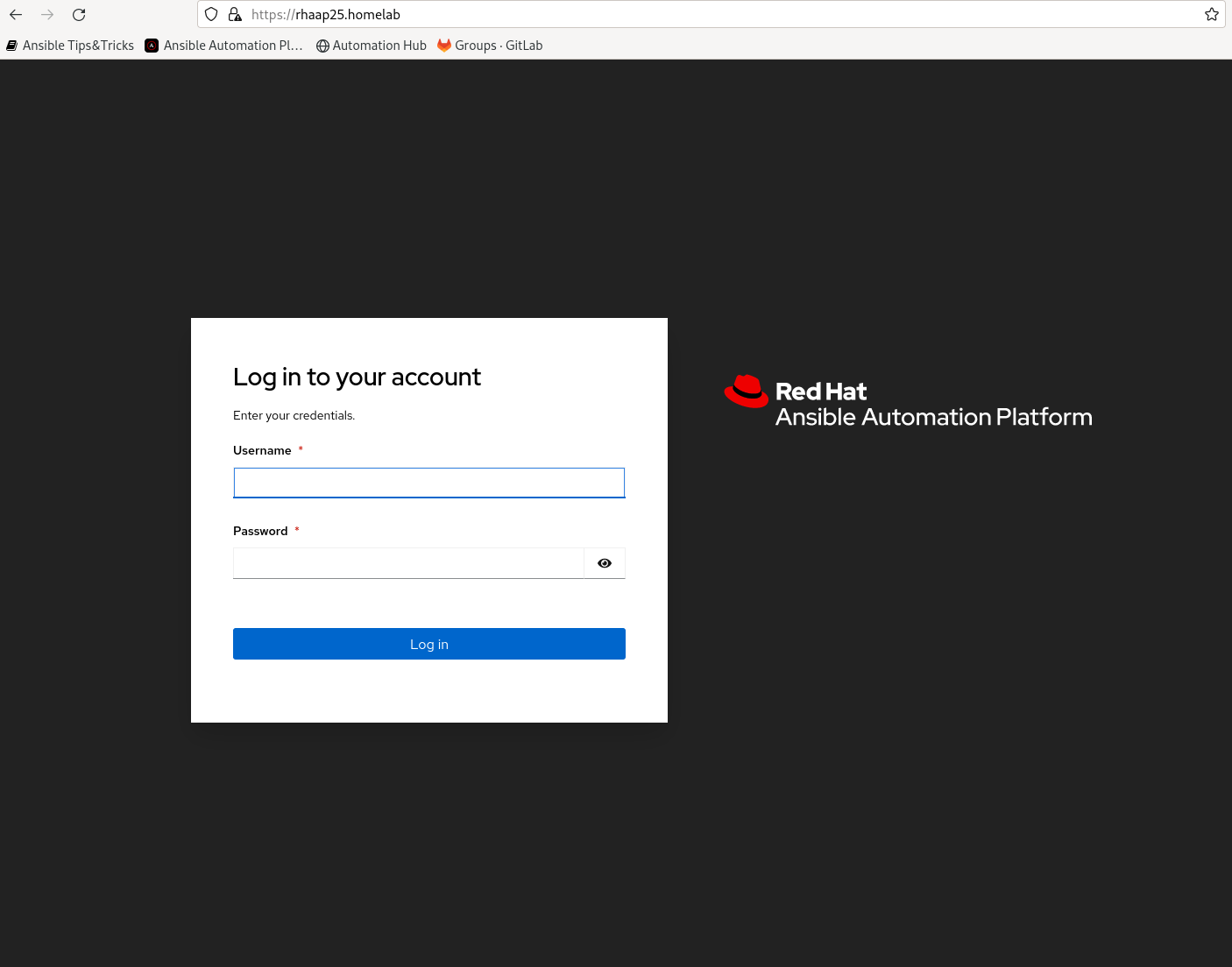
Post installation tasks
After you have installed Ansible Automation Platform, configure a Basic organization, Team and user. Setup synchronisation between the
private hub and the redhat/community repositories.
Create a requirements.yml file with at least these collections in it:
---
collections:
  - community.general
  - community.vmware
  - community.windows
  - ansible.posix
  - ansible.windows
and upload this file to the private hub to have these repositories synced and availlable.
Setup an 'ansible' user and generate a ssh-key pair on the controller.
This is one of the most important things to have working now, the rest is ansible configuration and playbooks.
The homelab environment is now complete for me to run any tests with ansible I want to run.
Refer to the configuration as code section for a description of configuration as code for ansible automation platform 2.4.
A desription of ansible automation platform 2.5 configuration as code can be found here:
ConfigAsCode for RHAAP v 2.5
for automation platform 2.6 here:
ConfigAsCode for RHAAP V 2.6.
for automation platform 2.6 here:
ConfigAsCode for RHAAP V 2.7.
Using Automation platform on proxmox
It would be nice to be able to use ansible and automation platform on our proxmox homelab.
After installation and configuring the basics it is time to start using the platform for what it is made for..
The first thing we need on any platform for rhaap to be functional, is an inventory. While we could create a static inventory that we can extend on each deployment, we can also create a dynamic inventory that gets updated every run.
One thing could be added still, that is monitoring.. something like grafana with prometheus, to be able to send alerts to the EDA of ansible automation platform. Then you could handle events as they happen to realize self healing infrastructure..
There are always more options to configure and test.
Have fun!